iOS 9 content blocking Safari extensions
October 24, 2015

iOS 9 content blocking Safari extensions are from now on really simple to create. Thanks to new feature in iOS 9. Here is step-by-step guide about what you need to do in order to make you own content blocker. Here I will give an example of extension, that will be blocking .jpg images.
Be aware, that in order to use Content Blocking API, user must have device with 64-bit processor. Otherwise Content Blocker is simply not available on that device due to 32-bit processors being quite slow for this type of work.
Project setup
First of all we need to create a project with content blocking extension. Xcode provides pre-made template for this type of extension. Once you have created an Xcode project, navigate to Editor > Add Target... > Content Blocker Extension.
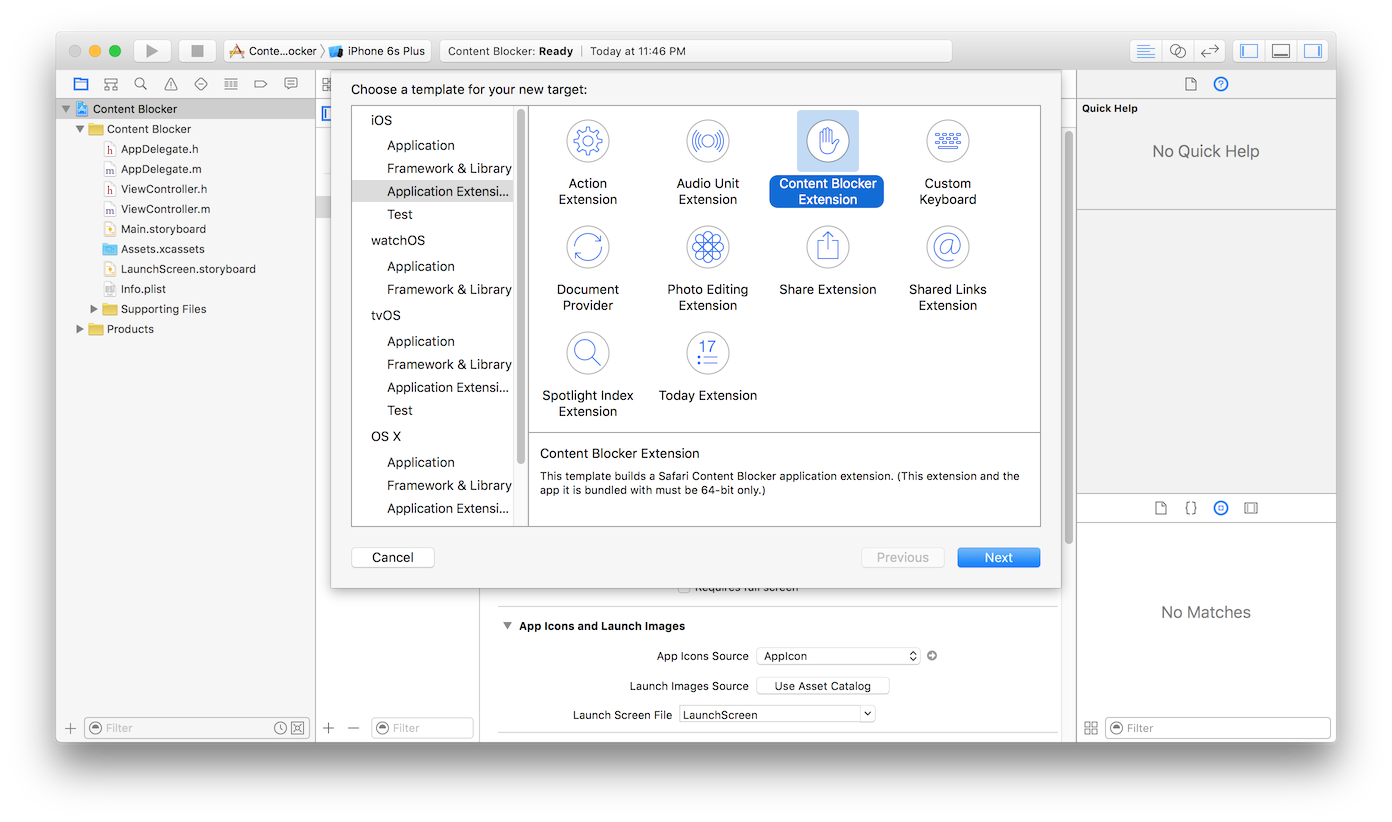
Give the name for your new target, which is going to be your actual blocker. Xcode is going to ask you if you want to apply predefined scheme for this type of extension. Just say Activate.
You will be able to see a new folder in your navigation panel, called the same way as you have named your extension target. Here is where we are going to do blocking magic.
JSON configuration
Now this type of extension has a
The file has an array of objects, which are going to define blocking behavior. Here we are going to specify, that we are blocking only
[{
    "action": {
    "type": "block"
    },
    "trigger": {
    "url-filter": "/*.jpg"
    }
}]
Run the blocker
Now you just have to run the project, open preferences, go to Safari > Content blockers > your_app and enable your app, so the iOS would build your extension when it opens Safari and uses it. Now you won't see any
Blocker rules change
What system does when you enable your content blocker? It builds your extension and uses compiled code every time Safari is used, as long as blocker is enabled, and never checks or rebuilds it again until you turn it off and then on again. But what if you want to allow a user to switch on/off your blocker directly from the app? Generally, it is not possible from the app. Bummer. But I came up with a workaround.
In the blocker extension target, you have class named
Now, to turn the blocker off, since we can't go to Settings app and turn it off programmatically, you might have came up with an idea - "Don't supply
OK, you say, here is a file. "But hey, I will just make it empty" you say. Well. No. Bad idea again. Because you must supply a
"How can I do it then?" you say. Well, what I did, was to create another
Dirty. Nasty. Works.
When you need to respond to you on/off button and update your extension configuration, simply call this method:
static NSString * const kBlockerIdentifier = @"com.arsenkin.ImageBlocker.Blocker";
[SFContentBlockerManager reloadContentBlockerWithIdentifier:kBlockerIdentifier completionHandler:nil];
This will tell the system to rebuild your extension, so your new changes to the blocker would be applied.